Create an application
The create form end to end — choosing a type, naming it, its owner and domain, the fields its type needs, and watching it provision.
Every application on the server is made on one screen. The form asks three things in order — what to run, where it lives, and the handful of settings that particular software needs — then provisions it while you watch.
Open it from Applications → Create application, or from the Create application button on the dashboard when the server is still empty.
1. Choose an application

The grid opens on Popular. The tabs — CMS, Development, Tools, Productivity and All — filter it, and the search box matches on name.

Selecting a card is the only thing on this screen that changes the rest of the form: the Configure essentials section below is empty until you pick one, and then shows that type's fields and nothing else.
The grid only shows what this server can run
A type whose serving profile your stack does not handle is left out of the catalog entirely rather than shown greyed out — a LEMP server has no Node or container cards at all. A type the server could host but is missing a runtime or database for is shown, disabled, with the reason and a link to install what it needs. See what your server can host.
2. Name it, and say where it lives

| Field | What it does |
|---|---|
| Name | Your label for the application in the panel. It also fills in the domain and the system user below — both stay editable. |
| Domain | Either My domain or Temporary. |
| System user | The Linux account that owns the files and can log in over SSH or SFTP. |
My domain takes a hostname only — blog.example.test, not a URL — and
shows the address to point its A record at, with a copy button. DNS does not
have to resolve yet; it has to resolve before a certificate can be issued.
Temporary fills in a nip.io hostname built from the name and the server's
IP, like my-blog.203-0-113-10.nip.io. It resolves immediately with no DNS
work, which makes it the quickest way to get something running — swap in a real
domain before launch.
For the owner, Generate a new system user creates a dedicated account named after the application, with a password filled in for you (Generate makes a new one, the eye reveals it). One application per user is the safer default: a break-in is contained to that site's files. Use an existing system user shares an account with your other applications instead, which is what you want when several sites belong to the same project.
3. Configure essentials
Only the fields that type actually needs are shown.
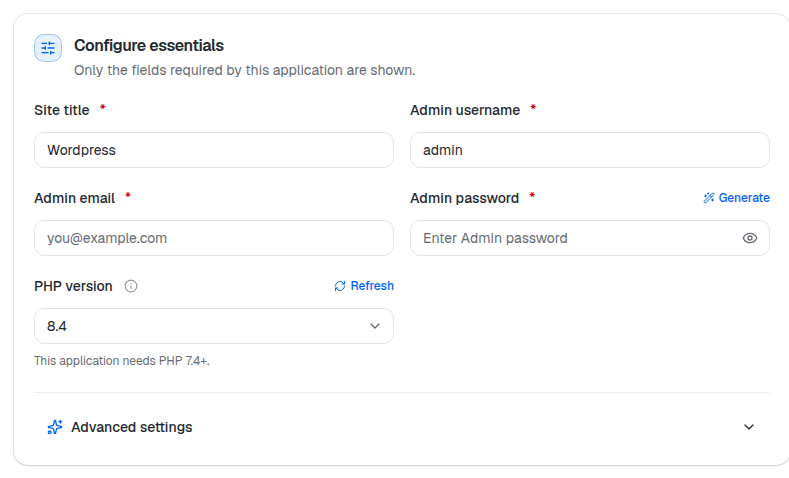
What appears here is entirely type-dependent — a static site asks nothing, a one-click app asks for its administrator account. Two controls turn up across most types:
PHP version lists only versions this application supports, with the requirement spelled out underneath ("This application needs PHP 7.4+."). If you have just installed a version on the PHP screen, Refresh picks it up without reloading the page.
Database engine appears only when more than one engine the application accepts is installed — with one engine there is no choice to make, so the field is hidden and that engine is used.
The engine is permanent
"This cannot be changed later — moving an application to another engine means creating it again." The panel will not migrate an application between MySQL and PostgreSQL.
Advanced settings holds the rest, collapsed, with defaults that are fine to leave alone.

Web root is the one worth knowing about: it is the directory inside the
application that the web server serves. / is right for WordPress and most
one-click apps; a framework that serves out of a subdirectory wants
/public.
4. Create it

The action bar floats at the bottom of the form the whole way down, and each section header gets a green tick once it is satisfied.
Create application stays disabled while something structural is missing, and hovering it says which:
| Tooltip | Meaning |
|---|---|
| Choose an application type to continue. | Nothing selected in step 1. |
| Install the service this application needs first | The type needs a runtime or database engine that is not installed. |
| Complete N required items to continue. | Required fields are still empty. |
Ordinary per-field validation is separate — those errors appear under the field when you submit.
5. Watch it provision
Submitting takes you straight to the new application's dashboard, where the work happens in front of you.

Each server step is named and ticked off as it finishes:
| Step | What it does |
|---|---|
| Preparing the system user | Creates the Linux account, or reuses the one you chose. |
| Creating the application folder | Makes the site directory under the user's home. |
| Setting file permissions | Ownership and modes so the web server can read it and nothing else can. |
| Adding a placeholder page | Something to serve before the real files land. |
| Locking down PHP functions | Disables the dangerous ones for this site's pool. |
| Setting up PHP for this application | Its own PHP-FPM pool on the version you picked. |
| Writing the web server configuration | The nginx, Apache or OpenLiteSpeed site file. |
| Checking the web server configuration | A syntax check before anything is reloaded. |
| Reloading the web server | Brings the site online. |
| Creating the database | Database plus a user, for types that need one. |
| Downloading files | Fetches the application, for a one-click install. |
| Unpacking files | Extracts it into the web root. |
| Applying configuration | Writes its config file and runs its installer. |
This runs on the server, not in the browser — "This continues on the server. You can safely leave this page." Most applications are ready in a few minutes; a one-click installer takes longer.
If something goes wrong the same card says so rather than spinning forever:
- Setup failed — with "Stopped at: <step>", or the server's own explanation when it has one, and a Retry setup button that runs the remaining steps again.
- This is taking longer than expected — setup has reported no progress for a while. It may still be running; Check again re-reads the status.
6. The finished application

When provisioning finishes the status becomes Running and the page becomes the application's permanent dashboard:
- Visit application opens the site. Magic Login signs you into the admin area of a one-click app without typing its password.
- A certificate has already been requested for the domain — Domains and SSL
shows HTTPS and when it renews. On a temporary
nip.iodomain this works; on your own domain it needs theArecord pointing at the server first. - Needs attention flags what is not set up yet. On a new application that is Backups not configured — nothing is being backed up until you say so.
Limits and caveats
- One domain is primary. Extra domains and aliases are added afterwards under Domains & SSL, not during creation.
- The database engine cannot be changed once the application exists.
- The system user cannot be swapped afterwards either — it owns the files.
- A temporary domain is not a real one.
nip.ioresolves anywhere, but it is a public wildcard service and the hostname contains your server's IP. - Creating an application does not configure backups. That is a separate, deliberate step.